
Dieser Artikel ist nur auf Englisch verfügbar.
Sending Our Recipe Cards Wirelessly: What to Check First
Veröffentlicht ·6 Min. Lesezeit
Cable at home, camera up on a tripod, and a recipe card you want to try right now? 📡 Good news: you no longer have to type it in or dig for a USB cable. Here is the recipe-card reader’s guide to going wireless.
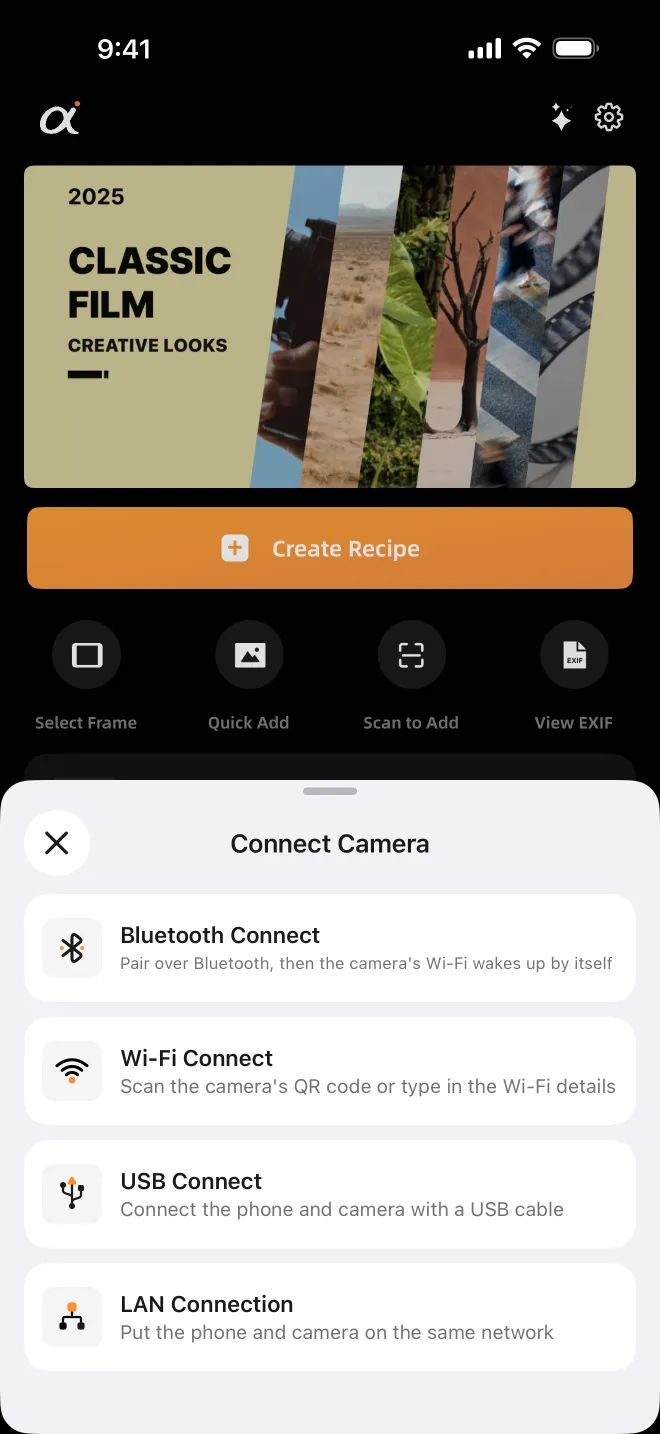
Short answer: since AlphaLuma 1.1.3 (App Store, 2026-10-03 UTC; China edition 1.1.5, 2026-09-29), this third-party iPhone app writes a whole Creative Look recipe — the look, eight adjustments and both white-balance shift axes — into a Sony camera over Bluetooth, a Wi-Fi Direct QR code or the same local network, as well as over USB. The α7 V and α7R V are verified on every path; the camera needs Creative Look in its menu.
·Sony Film Simulations und AlphaLuma sind Community-Tools von Drittanbietern für Sony-Alpha-Fotografen. Nicht mit der Sony Group Corporation verbunden, von ihr unterstützt oder gesponsert.
Four ways in, one result
| Best for | What you need | Phone stays online | Tested on | |
|---|---|---|---|---|
| Bluetooth | Out shooting — pair once, then the app wakes the camera hotspot for you | Nothing extra; the camera makes its own hotspot | No | α7 V, α7R V |
| Wi-Fi (QR code) | When Bluetooth won’t pair, or a borrowed camera | The QR code on the camera screen, or the hotspot name and password | No | α7 V, α7R V |
| Same network (LAN) | Long sessions at home or in the studio | A Wi-Fi router both the camera and iPhone can join | Yes | α7 V, α7R V |
| USB | The most stable link | A data cable (plus an adapter on iPhone 14 and earlier) | Yes | α7 V, α7 IV, α7C II, α7CR, α7R V, α7R VI, ZV-E1 |
Zur Seite wischen, um die ganze Tabelle zu sehen →
Whichever path you pick, you get the same things: recipe import, Camera Monitor and Recipe Lab all work on every path.
Before you start
- An iPhone and AlphaLuma 1.1.3 or later (China edition 1.1.5 or later). Writing over Bluetooth, Wi-Fi or the same network needs iOS 16 or later, and so do Camera Monitor and Recipe Lab on any connection; USB writing works on iOS 15.
- A Sony body with Creative Look in its menu.
- Creators’ App and Imaging Edge closed — the camera accepts only one remote connection at a time.
- When iOS asks for Local Network access the first time, allow it, or no wireless path will work.
First connection over Wi-Fi, in four steps
- Turn on remote shooting. On the α7 V: MENU → Network → Connect/Remote Shooting → Remote Shooting Function → turn on Remote Shooting, then open Wi-Fi Direct Info. Menu names vary a little between bodies; the guide in the app shows yours.
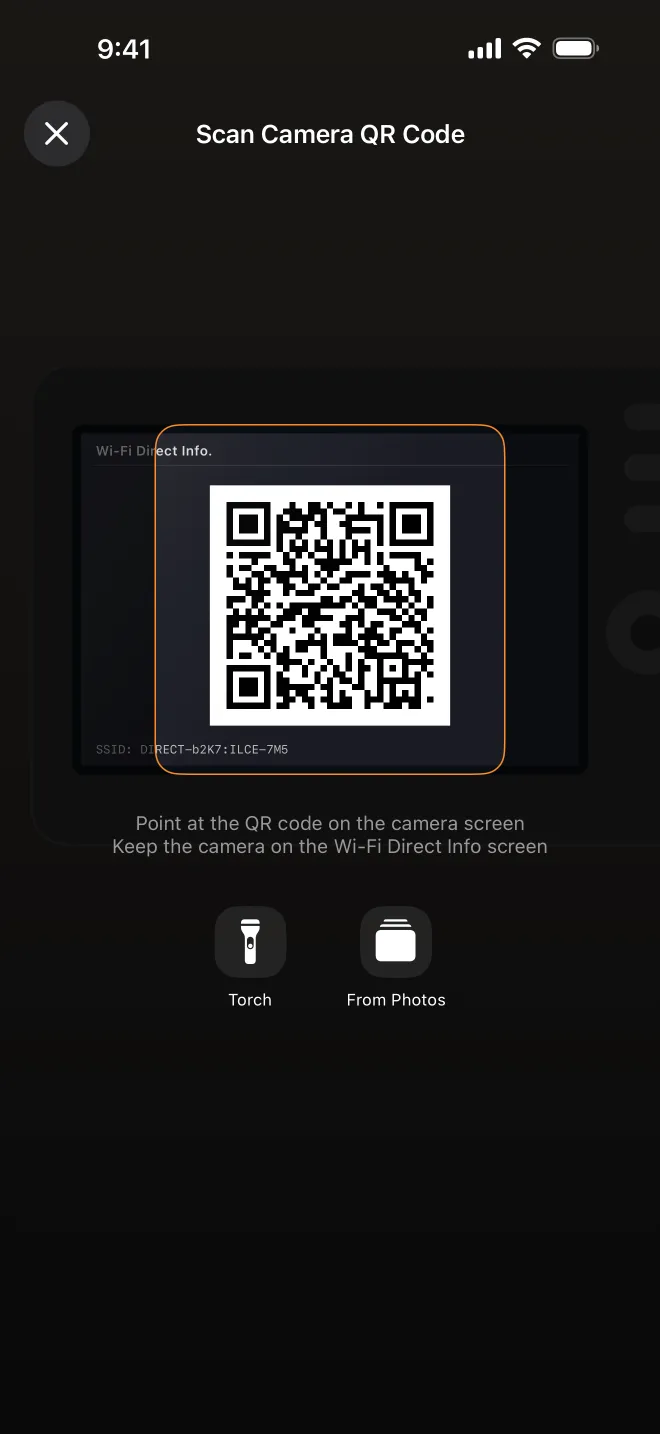
- Show the QR code. Wi-Fi Direct Info shows the hotspot name and password first — press the camera’s delete (trash) button to bring up the QR code, then tap Scan Camera QR Code in the app. You can also pick a photo of the code or type the details by hand.
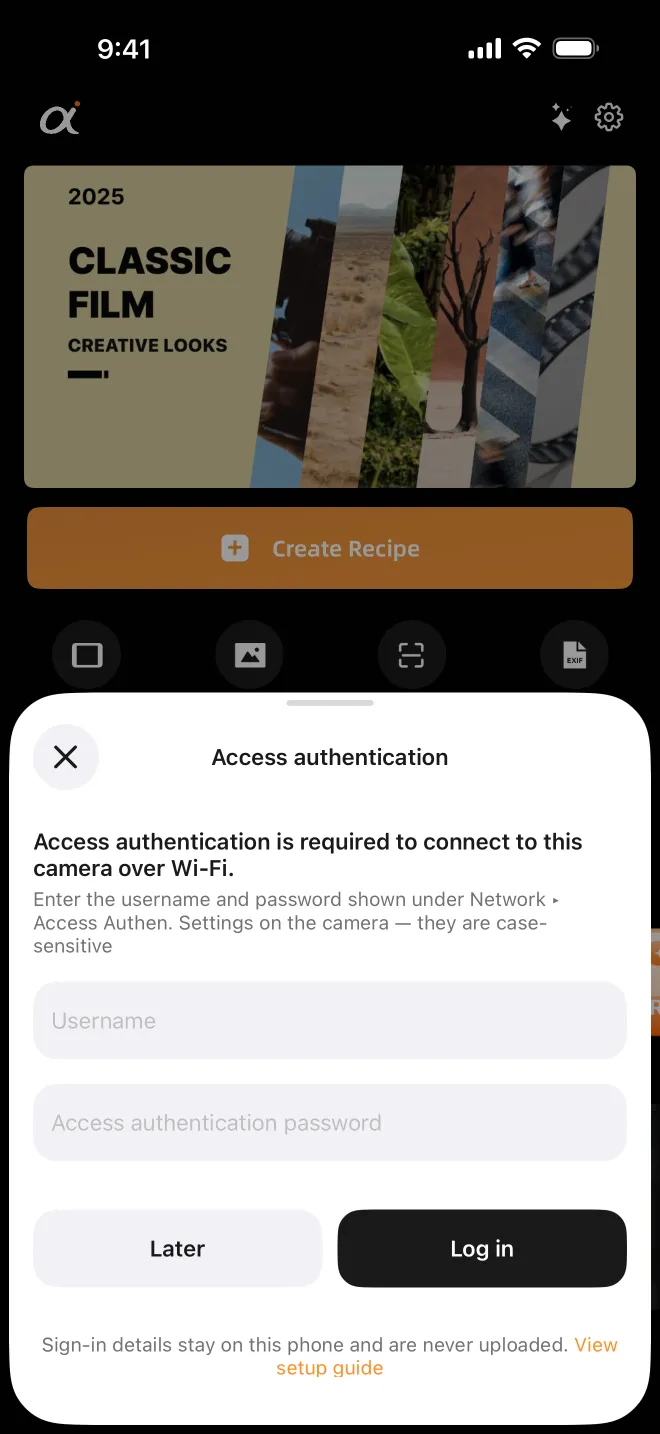
- Access authentication, once. Enter the user name and password shown on the camera under Network → Network Option → Access Authen. Info (Access Authen. Settings, in the same menu, is where you change them). They are not “admin”, they are case-sensitive, and they stay on your phone.
- Connected. You see the camera model and battery level, with shortcuts to import a recipe or open Camera Monitor.
The other paths, one line each
- Bluetooth: on the camera open Network → Connection/Remote Shooting → Smartphone Connection and leave it on the waiting screen; confirm pairing on the phone and press OK on the camera. Don’t pair with a USB cable plugged in.
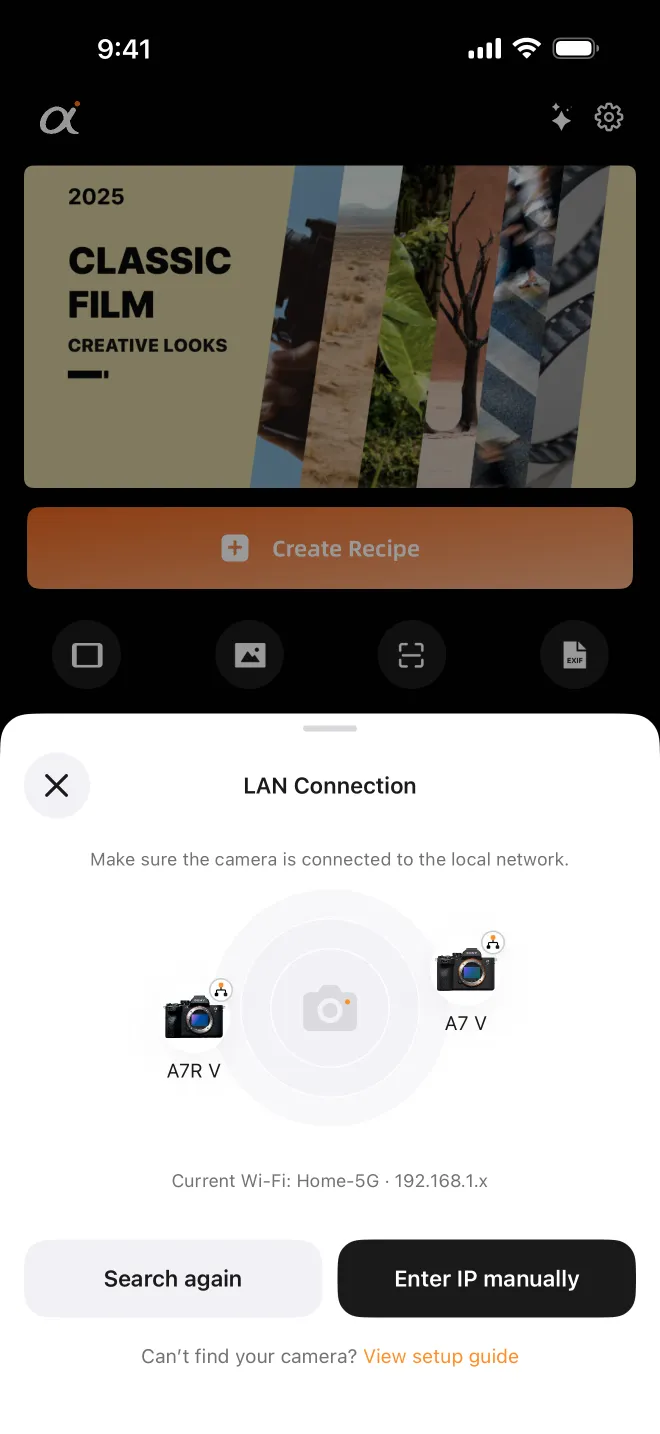
- Same network: join the camera to your Wi-Fi and turn on remote shooting (bodies that have an access authentication switch, such as the α7 IV from firmware 2.00, need it on too; the α7 V has no such switch), then tap your camera in the list — or type its IP address from Network → View Network Settings.
- USB: set USB Connection Mode to Remote Shooting and use a data cable. See the USB checklist.
From card to camera
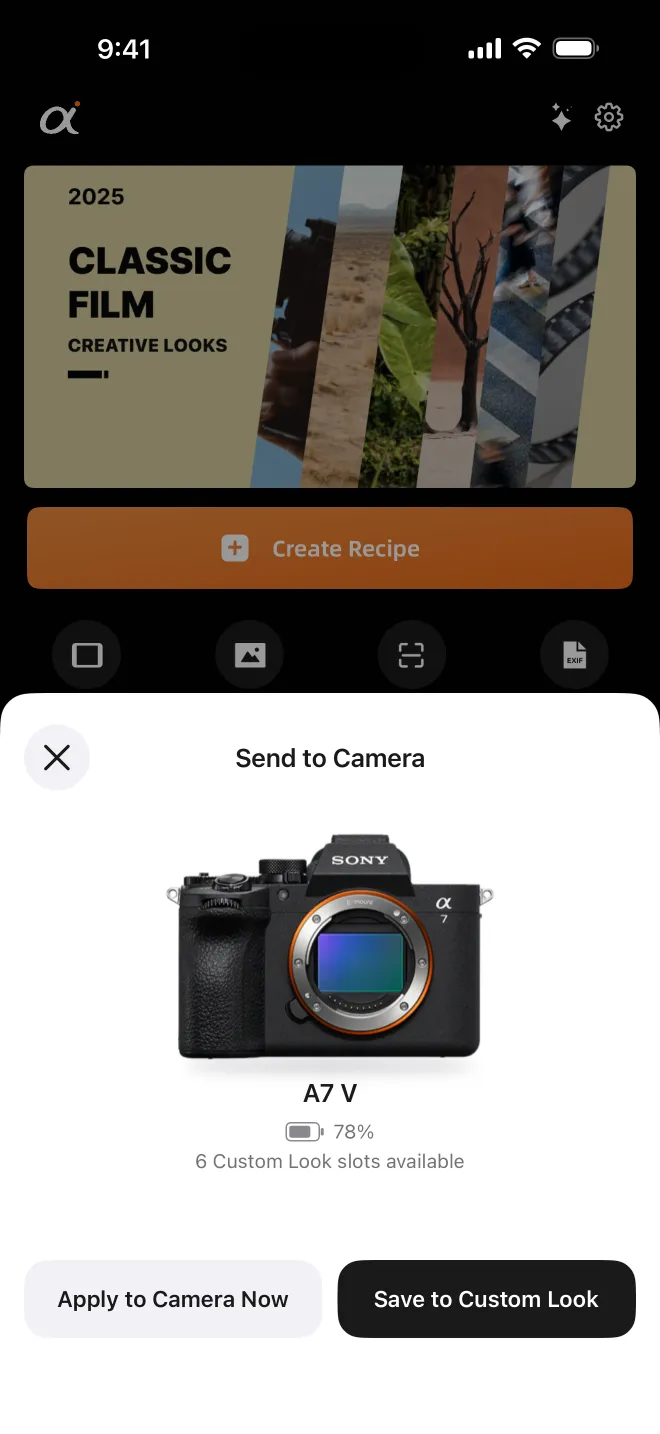
Once connected, open a recipe and import it: the whole recipe — look, eight adjustments and white balance — onto your current settings, or the look and its eight adjustments into a Custom Look slot (white balance is camera-wide and stays as it is). The look and its adjustments are shown first, and nothing is written until you confirm. Wireless and USB share the same write flow.
Which cameras (last checked 2026-10-06)
| Camera | Bluetooth | Wi-Fi QR | LAN | USB |
|---|---|---|---|---|
| α7 V | Verified | Verified | Verified | Verified |
| α7R V | Verified | Verified | Verified | Verified |
| α7C II, α7CR, α7 IV, α7R VI, ZV-E1 | Not yet tested | Not yet tested | Not yet tested | Verified |
| α7 III, α7C, α6400, ZV-E10, ZV-1 | No (Creative Style body) | No | No | No |
Zur Seite wischen, um die ganze Tabelle zu sehen →
The α7R V generation splits PC Remote and Smartphone Connect into separate menus; its smartphone hotspot doesn’t run the SSH remote the α7 V uses, so the app connects to the camera directly — verified on the α7R V over Bluetooth, the QR code and the same network. The α7C II and α7CR haven’t been verified wirelessly yet; on those, start with LAN or USB. Untested isn’t unsafe: the app checks the camera before writing and writes nothing to a body it doesn’t support.
Won’t connect? Check these first
- Turn off any VPN or proxy — they intercept traffic meant for the camera.
- Quit Creators’ App and Imaging Edge, and keep a memory card in the camera.
- Bluetooth stuck? In iPhone Settings → Bluetooth, forget the camera and pair again.
- Camera missing on LAN? Make sure the phone isn’t still on a camera hotspot, or type the IP address.
- Drops after a while? Keep AlphaLuma in the foreground — iOS suspends apps left in the background.
Need a card to send? Browse free recipe cards — every value listed — save it in AlphaLuma once, then send it over any of the four paths. Comparing all the options, typing included? See Manual vs USB vs wireless.
FAQ
- Does the recipe travel over Bluetooth?
- No. Bluetooth only wakes the camera and asks it to open its Wi-Fi Direct hotspot; the recipe itself is written over Wi-Fi.
- Does the α7R V work over Bluetooth or the camera hotspot?
- Yes. Bluetooth, the camera’s QR code, the same network and USB are all verified on the α7R V. Its smartphone hotspot doesn’t run the SSH remote the α7 V uses, so the app connects to the camera directly.