
บทความนี้มีเฉพาะภาษาอังกฤษ
Tweak a Recipe Card on Live View with AlphaLuma Recipe Lab
เผยแพร่ ·อ่าน 6 นาที
Every recipe card is somebody else’s taste. Maybe you want it a little warmer, a touch less faded, or punchier for tonight’s city lights 🌆. Here is how to treat a card as a starting point and fine-tune it while watching the actual scene.
Short answer: AlphaLuma Recipe Lab is a screen in the third-party iPhone app AlphaLuma (since 1.1.3, App Store 2026-10-03 UTC) where you tune a Sony Creative Look while watching the camera’s live view, then write it into a Custom Look slot or save it as your own recipe. It works over USB, Bluetooth, Wi-Fi or LAN with Creative Look bodies. It is not the open-source in-camera Recipe Lab app for the α6000.
·Sony Film Simulations และ AlphaLuma เป็นเครื่องมือชุมชนจากบุคคลที่สามสำหรับผู้ใช้ Sony Alpha ไม่มีความเกี่ยวข้อง ไม่ได้รับการรับรอง หรือสนับสนุนจาก Sony Group Corporation
Why tune on live view
Tuning in the camera menu goes like this: change one item, take a shot, play it back, go back in for the next. A Creative Look has eight adjustments plus white balance and two shift axes, so dozens of round trips are normal. Recipe Lab moves that loop onto your phone: the frame is the camera’s own live output, and every notch you turn shows up right away.
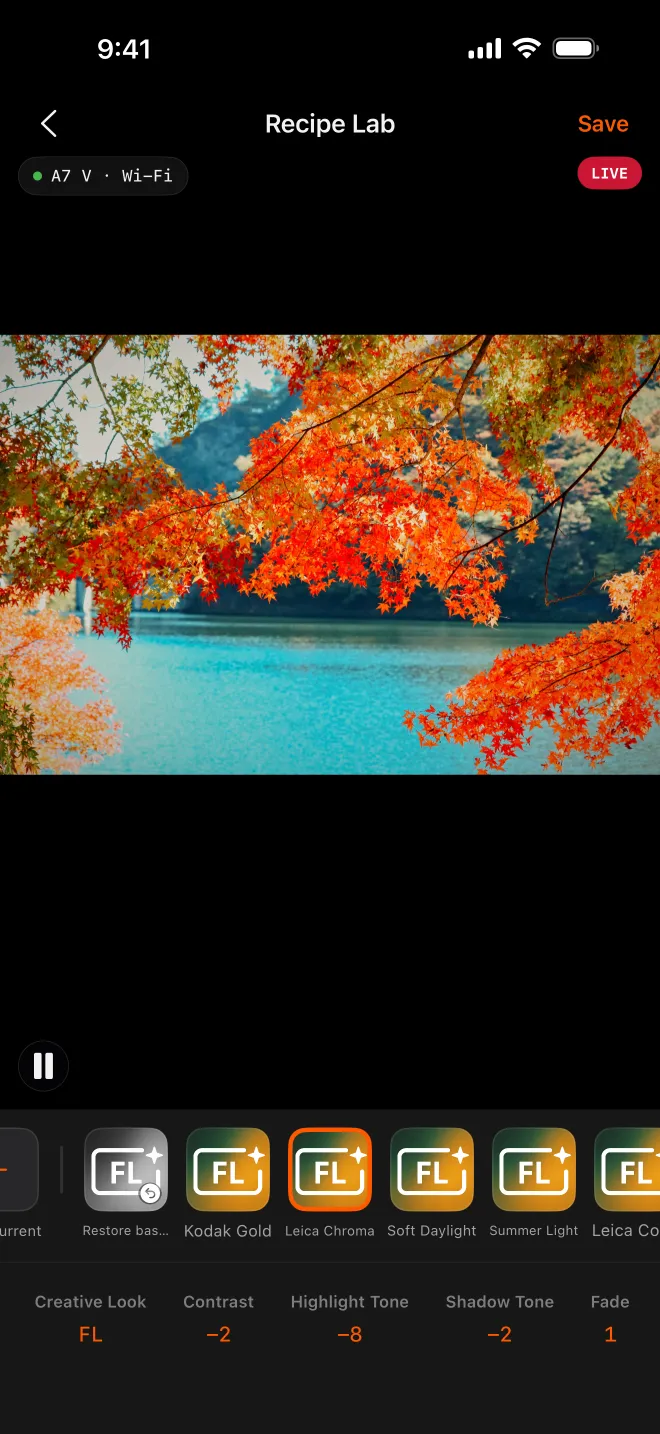
Everything you can adjust
| Setting | Range |
|---|---|
| Creative Look | Every base look your camera supports: ST, PT, NT, VV, VV2, FL, IN, SH, BW, SE, plus FL2 and FL3 on some bodies — read from the camera, not hard-coded |
| Contrast · Highlights · Shadows · Saturation | −9 to +9 |
| Fade · Sharpness · Clarity | 0 to 9 |
| Sharpness Range | 1 to 5 |
| White Balance | Every mode the camera offers, including Custom 1/2/3 |
| Color Temperature | 2500K to 9900K in 100K steps (Kelvin mode) |
| WB shift A–B | ±7, down to half steps (amber–blue) |
| WB shift G–M | ±7, down to quarter steps (green–magenta) |
ปัดไปด้านข้างเพื่อดูตารางทั้งหมด →
Names follow the camera’s own menu, so the numbers line up with the recipe cards on this site.
From recipe card to your own version, in four steps
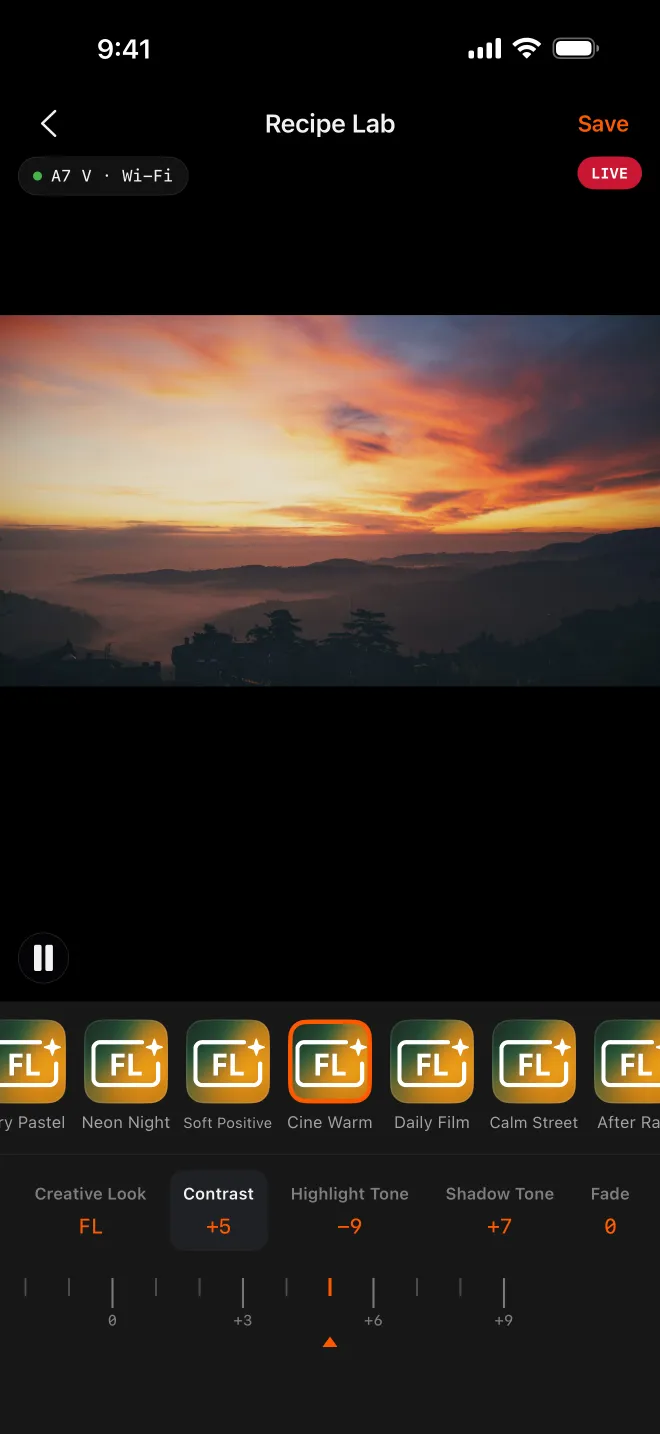
- Put cards on the strip. Tap Add Recipe at the end of the strip and pick from My Recipes or Favorites.
- Tap a card. The whole recipe — look, eight adjustments, white balance — goes into the camera in one go, and the frame updates.
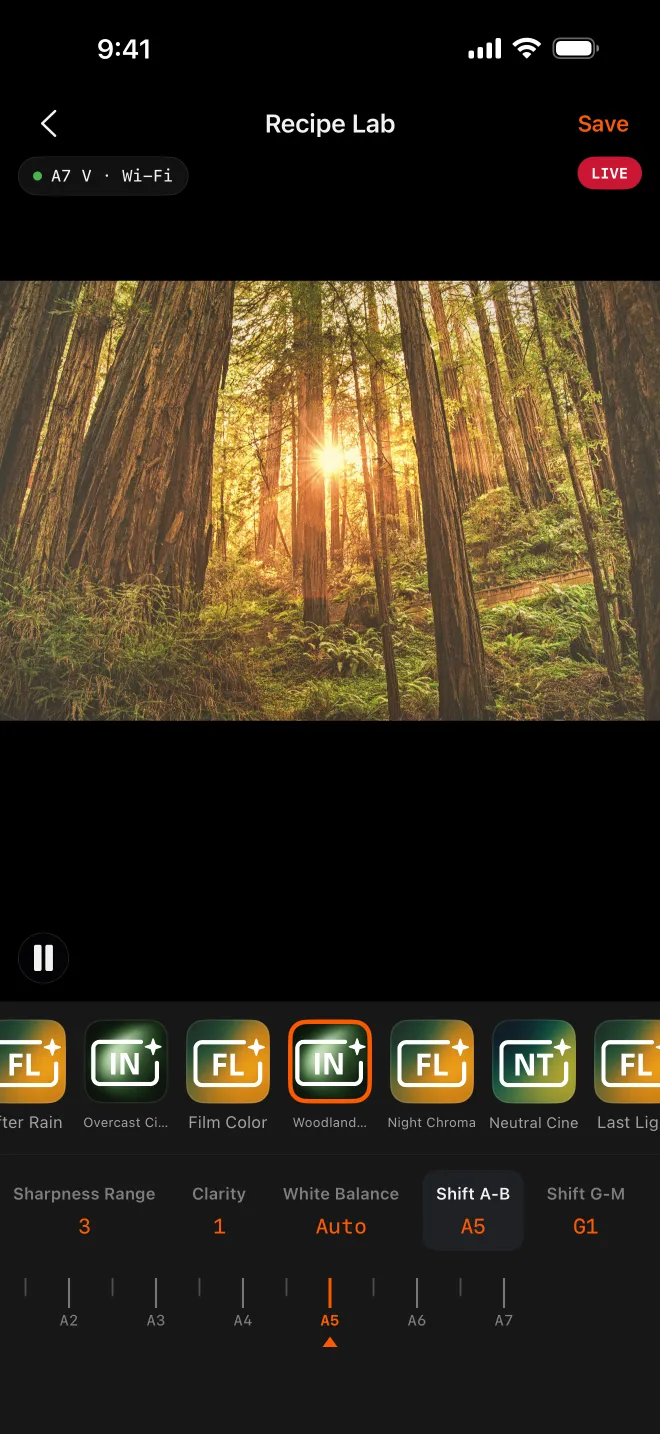
- Turn the dials. Tap an adjustment and drag; the value is written when you let go, so a sweep never fires a string of changes at the camera. Lost your way? Restore Baseline writes back the look, eight adjustments and white balance recorded for this connection — when you connected wirelessly, or over USB the first time you opened Recipe Lab or Camera Monitor after plugging in.
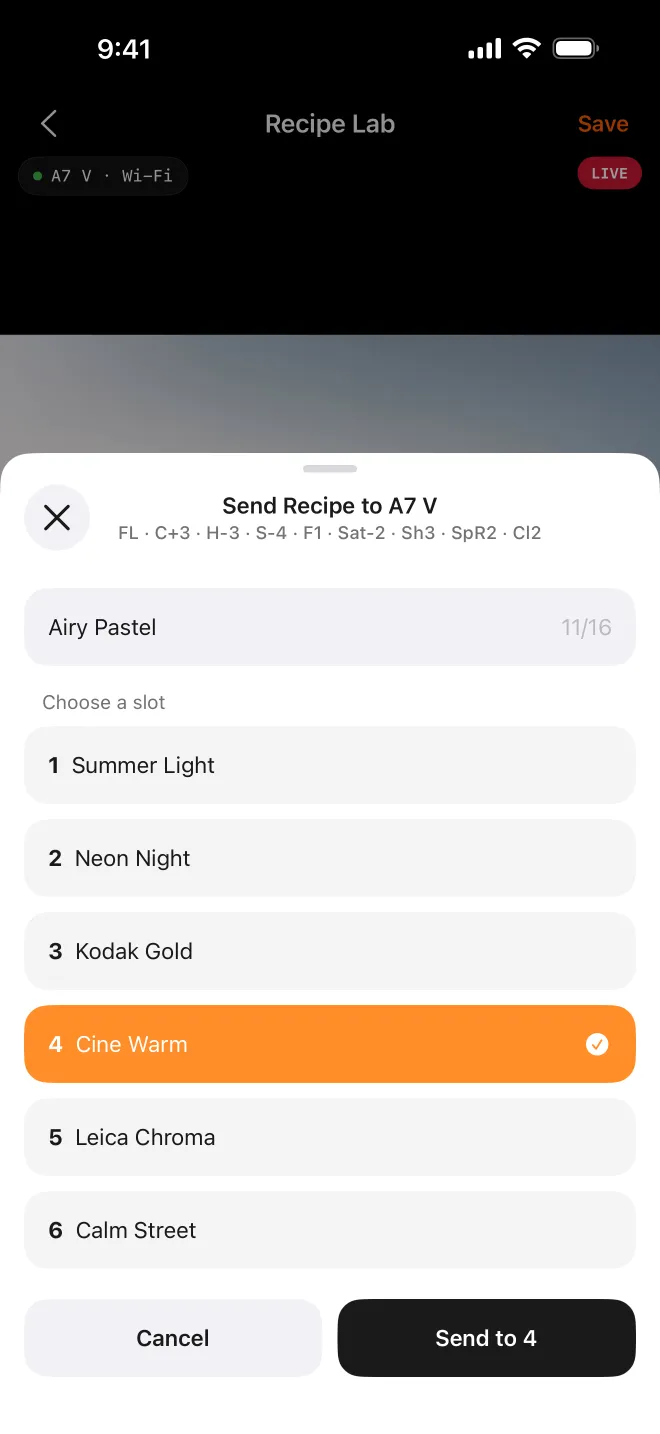
- Keep it. Long-press a card and choose Send to Camera, or tap Save → Send to Camera to write what is set right now into one of the six Custom Look slots. Or tap Save Current to keep it as a recipe in the app.
Good to know
- Picture Profile locks Creative Look. If one is on, the app turns it off first and tells you.
- White balance doesn’t go into a Custom Look slot — that is the camera’s rule, and the slot page says so.
- Custom WB 1/2/3 can’t be saved into a recipe, because those values are measured on location.
- Portrait only. For a full-screen landscape view, use Camera Monitor.
- Needs iOS 16 or later and a connected camera with Creative Look — see Recipe card to camera, no cable.
Make it yours, then share it
Save Current turns whatever the camera is set to into a recipe, with the current frame as its thumbnail. Sharing to the AlphaLuma community is off by default, so it stays on your phone until you decide otherwise. Want to post it here as well? Create a recipe card with the values from the app.
Which cameras
Verified by writing over USB (last checked 2026-10-06): α7 V, α7 IV, α7C II, α7CR, α7R V, α7R VI and ZV-E1; the α7 V and α7R V also over Bluetooth, Wi-Fi and LAN. Creative Style bodies such as the α7 III, α7C, α6400 and ZV-E10 use different parameters and can’t receive recipes — the lab tells you when it connects.
คำถามที่พบบ่อย
- Is AlphaLuma Recipe Lab the same as the Recipe Lab app for the α6000?
- No. That Recipe Lab is an open-source app installed inside the α6000 and other Creative Style bodies. AlphaLuma Recipe Lab runs on your iPhone and works with Creative Look bodies.
- Will tapping a card wipe my camera’s settings?
- It replaces the current settings, but Restore Baseline brings back the look, adjustments and white balance recorded for this connection (wirelessly: when you connected; over USB: the first time you opened Recipe Lab or Camera Monitor after plugging in). Custom Look slots are only replaced when you confirm.