
Compare Creative Look Recipes on a Screen Bigger Than Three Inches
Published ·4 min read
Choosing between two recipes on the camera’s three-inch screen is like picking paint colours through a keyhole 🔍. Put the live view on your phone, flip between looks, and the decision gets a lot easier.
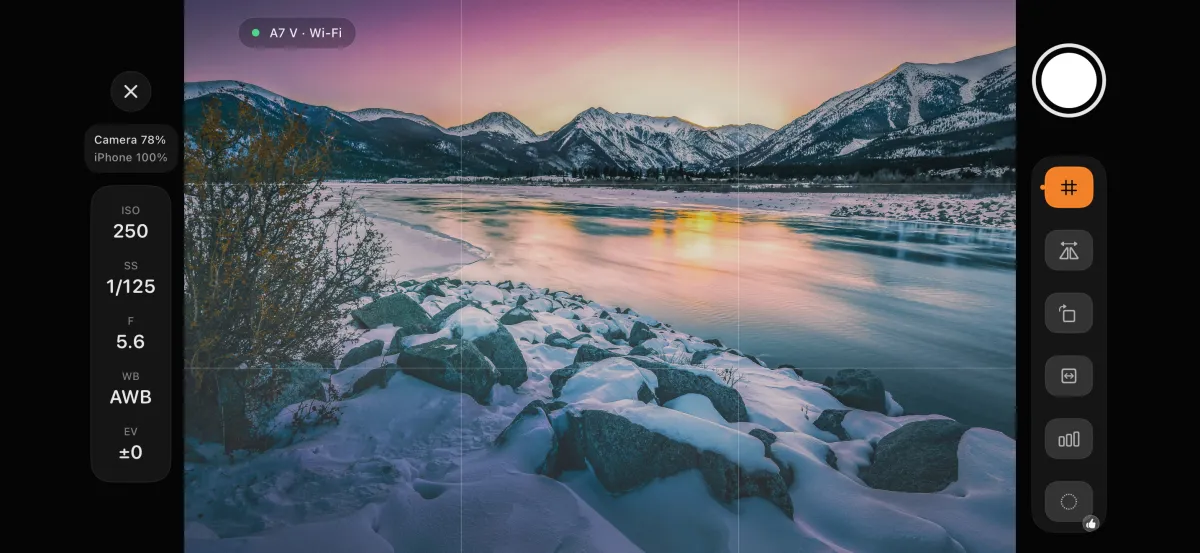
Short answer: Camera Monitor in the third-party iPhone app AlphaLuma (iOS 16 or later) shows a Sony camera’s live view on your phone and can switch the Creative Look on the camera itself — the built-in looks plus your Custom Look slots. Because the setting is written into the camera, the frame you see is the frame that lands on your memory card. It works over USB and, since 1.1.3, over Bluetooth, Wi-Fi or LAN.
·Sony Film Simulations and AlphaLuma are third-party community tools for Sony Alpha photographers. Not affiliated with, endorsed by, or sponsored by Sony Group Corporation.
Two kinds of tools — know which is which
| Tool | Changes the camera? | Ends up in your photos? |
|---|---|---|
| Grids, safe frames, aspect masks | No — phone view only | No |
| Zebra, false color, focus peaking | No | No |
| Histogram, waveform | No | No |
| Desqueeze, flip, rotate | No | No |
| Creative Look switching | Yes — written into the camera | Yes |
| ISO, shutter, aperture, white balance, exposure compensation | Yes | Yes |
| Remote shutter (USB) | Yes — fires the camera | — |
Swipe sideways to see the whole table →
That is the one thing worth remembering: switch a grid off and nothing happened to the camera. Tap a look and the camera changed.
A recipe-card workflow
- Load your favourite cards into Custom Look slots — over USB, wirelessly or by hand (which way?).
- Open Camera Monitor from the home screen and turn the phone sideways — a 3:2 frame uses about a third of the screen in portrait.
- Open the Creative Look panel and tap through your slots. The live view updates because the camera changed.
- Pick the winner and shoot. Collapse the panel; a badge on the toolbar shows which look is loaded.
Camera Monitor or Recipe Lab?
| Camera Monitor | AlphaLuma Recipe Lab | |
|---|---|---|
| The question it answers | Is this shot right? | What should this camera look like? |
| Layout | Landscape, full screen | Portrait |
| Looks | Switch between looks and slots | Tune every slider, then save as a recipe or into a slot |
| Exposure tools | Zebra, false color, peaking, scopes | — |
Swipe sideways to see the whole table →
Want to go further than switching? Tweak a recipe card on live view.
What you need
iOS 16 or later, a Sony body with remote shooting, and a USB data cable or one of the wireless paths. Look switching needs Creative Look in the camera menu; bodies on the older Creative Style still get the live view and the phone-side tools, but can’t switch looks.
Some monitor tools are unlocked inside the app; see the app for details.
Short-list your next candidates in the free recipe cards.
FAQ
- Is the look on the monitor just a preview?
- No. Creative Look is written into the camera, so the live view changes because the camera changed — the frame on your phone is the frame that lands on your memory card.
- Do grids or zebra end up in my photos?
- No. Grids, safe frames, aspect masks, zebra, false color, peaking and scopes only change what you see on the phone.