
Got a Recipe Card? Three Ways to Get It Into Your Sony
Published ·5 min read
So you found a recipe card you love 🎞️ — a base look, eight numbers and a white-balance shift. Now for the fun part: getting it into the camera before the light changes. There are three ways to do it, and the first one costs nothing.
Short answer: every recipe card on this site can be typed into a Sony Creative Look menu by hand — free, no app, eight adjustments plus white balance. If you would rather not type, the third-party iPhone app AlphaLuma can write the same card into the camera over USB, or since version 1.1.3 (App Store, 2026-10-03) over Bluetooth, Wi-Fi or your home network. All three ways need a body with Creative Look.
·Sony Film Simulations and AlphaLuma are third-party community tools for Sony Alpha photographers. Not affiliated with, endorsed by, or sponsored by Sony Group Corporation.
The three ways at a glance
| Type it in | USB (AlphaLuma) | Wireless (AlphaLuma) | |
|---|---|---|---|
| What you need | The camera and the card | iPhone, AlphaLuma and a data cable (plus Apple’s Lightning to USB Camera Adapter on iPhone 14 and earlier) | iPhone and AlphaLuma 1.1.3 or later; the camera’s own hotspot or a shared Wi-Fi router |
| App required | No | Yes | Yes |
| Typos | Possible — Fade is the usual slip | No retyping at the camera: the recipe saved in AlphaLuma is written as-is, and every change is listed before you confirm | Same as USB — identical write flow |
| White balance + A-B / G-M shift | Set by hand | Written when you apply to current settings | Same as USB |
| Custom Look slot | Register it yourself | Pick a slot and confirm | Pick a slot and confirm |
| Phone stays online | — | Yes | LAN: yes · Bluetooth / Wi-Fi: no (the phone joins the camera hotspot) |
| Tested bodies | Any Creative Look body | α7 V, α7 IV, α7C II, α7CR, α7R V, ZV-E1 | α7 V on every path · α7R V over LAN |
| Creative Style bodies (α7 III, α6400…) | Cards don’t fit — no Fade slider | Can’t receive recipes | Can’t receive recipes |
Swipe sideways to see the whole table →
1. Type it in — free, works on every Creative Look body
This is still how most of us shoot. Open the card, go to MENU → Exposure/Color → Color/Tone → Creative Look, pick the base the card names (FL, IN, SH…), then enter the eight adjustments: Contrast, Highlights, Shadows, Fade, Saturation, Sharpness, Sharpness Range and Clarity. Finish with white balance and the A-B / G-M shift, then register the result as a Custom Look or save it to Memory Recall.
Step by step with menu paths: How to apply a Creative Look recipe.
2. USB — one cable, the whole card in one go
AlphaLuma reads the recipe and writes it into the camera: the Creative Look, all eight adjustments and both white-balance shift axes. You choose whether it lands on your current settings or in a Custom Look slot, and nothing is written until you have seen the list of changes and confirmed.
- Set the camera’s USB Connection Mode to Remote Shooting (PC Remote on some bodies).
- Use a cable that carries data — charge-only cables are the number-one reason nothing shows up.
- Keep a memory card in the camera and quit Creators’ App or Imaging Edge first.
Checklist and fixes: Recipe card to Custom Look slot over USB.
3. Wireless — Bluetooth, Wi-Fi or your home network
Since AlphaLuma 1.1.3 the same write works without a cable. Bluetooth pairs once and then wakes the camera’s hotspot for you; Wi-Fi scans the QR code on the camera screen; same network (LAN) finds the camera on your router and keeps your phone online. Bluetooth only wakes the camera — the recipe itself travels over Wi-Fi.
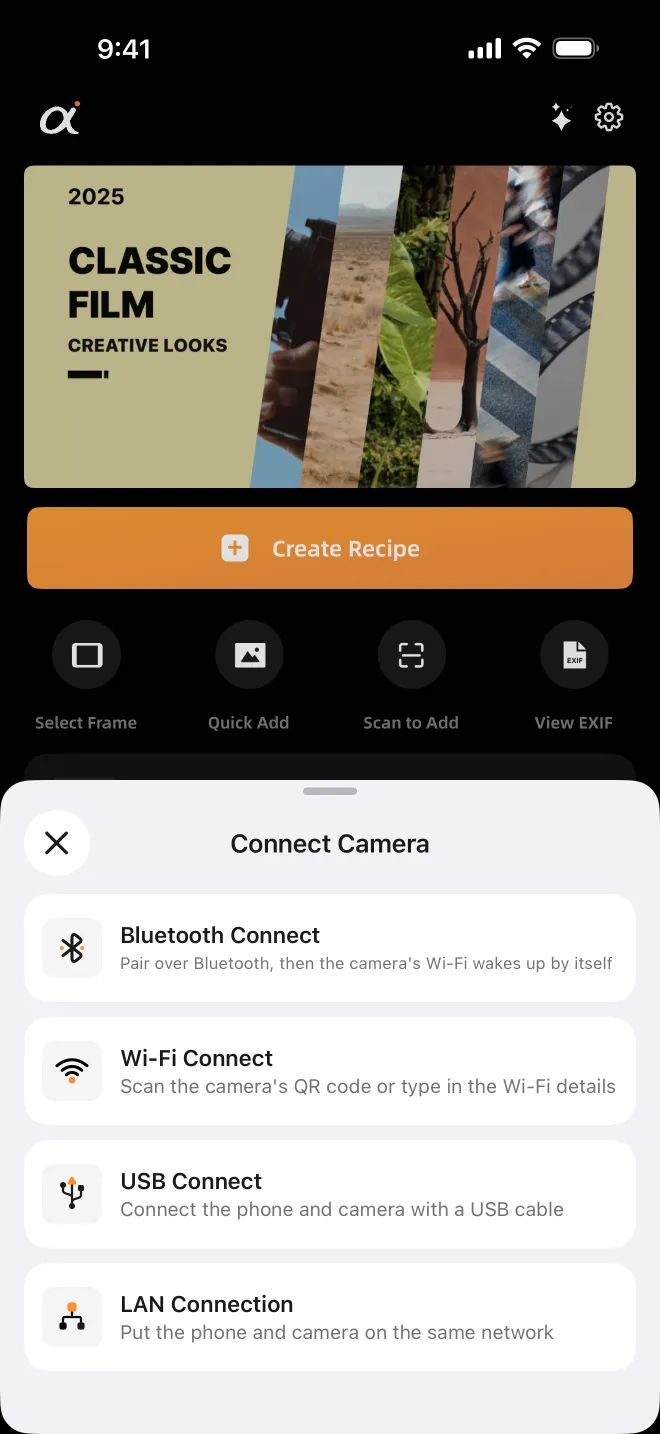
Walkthrough with screenshots: Recipe card to camera, no cable.
So which one should you pick?
- Trying one recipe today? Type it in. It’s free, and you learn what each slider does.
- Filling all your Custom Look slots, or setting up a second body? USB — one cable, a few taps per card.
- Camera on a tripod, or the cable left at home? Wireless. At home, LAN keeps your phone online for long sessions.
- Want to tweak a card while watching the scene? That’s AlphaLuma Recipe Lab.
Whichever you choose, the starting point is the same: a card with every number on it. Browse the free recipe cards.
FAQ
- Do I need an app to use the recipes on this site?
- No. Every card lists the base look, the eight adjustments and white balance, and you can type them into the camera’s Creative Look menu by hand. An app such as AlphaLuma only saves the typing.
- Can a Creative Style camera like the α7 III or α6400 receive these recipes?
- No. Those bodies use the older Creative Style menu, which has no Fade slider and different parameters, so the cards don’t map one to one — not by hand, not over USB, not wirelessly.