
How to set a Creative Look recipe and save Memory Recall
A Sony Creative Look recipe is a community-shared set of in-camera parameters—Contrast, Highlights, Shadows, Fade, Saturation, Sharpness, Sharpness Range, Clarity, plus white balance and color filter—applied on a Creative Look base (ST, PT, NT, VV, VV2, FL, IN, SH, BW, SE) for SOOC stills and video. Sony Film Simulations publishes free parameter cards. No file to download: type the numbers into the camera menu, or send them over Wi-Fi or USB with the third-party AlphaLuma app.
·Independent community site. Not affiliated with, endorsed by, or sponsored by Sony Group Corporation.
Typing Fade off a paused YouTube frame is how the number usually goes wrong. These four steps are the hand-copy path. On the camera. No extra software.
First, check which menu the recipe is for
Creative Look, Creative Style and Picture Profile are three separate menus on a Sony, and values set in one do not carry over to the others. Every recipe on this site is a Creative Look recipe: a base plus eight sliders, Fade and Clarity included. Older bodies (A7 III, first-generation A7C, A6400, A6600, A6100, first-generation ZV-E10) only have Creative Style, so these cards will not fit them. Picture Profile is for footage you plan to grade. If you are not sure which menu a recipe was written for, Creative Look vs Picture Profile vs Creative Style puts the three side by side.
1. Open a recipe card
Every card lists the base (FL, IN, SH…) plus Contrast, Highlights, Shadows, Fade, Saturation, Sharpness, Sharpness Range, Clarity, and usually white balance. If a screenshot is missing a number, skip that card. We do not guess.
2. Open Creative Look
MENU → Exposure/Color → Color/Tone → Creative Look. Or Fn, if you mapped it. Not Image Quality. Pick the base on the card. A7 IV class has ten looks. Some bodies also have FL2 and FL3 (for example the A7 V, A7R VI, FX2, RX1R III and RX10 V; the A1 II and A9 III from firmware 4.00).
3. Type the eight numbers, then white balance
Enter them as written. Then Kelvin or AWB White/Ambience, the A-B / G-M filter, DRO if the card lists it. Fade is the one people mistype off a paused YouTube frame.
4. Save to Custom Look or Memory Recall
Register it as a Custom Look, or dump the whole camera state to MR1–3 on the mode dial. Shoot RAW+JPEG. The Look is in the JPEG. Lightroom will not show those sliders on the RAW. Imaging Edge Edit can put a Look back on a Sony RAW, on a computer.
Not typing it? Write it with AlphaLuma
The third-party iPhone app AlphaLuma writes the same card into the camera: the base look, the eight sliders and the white-balance shift. It shows what it will write and waits for you to confirm.
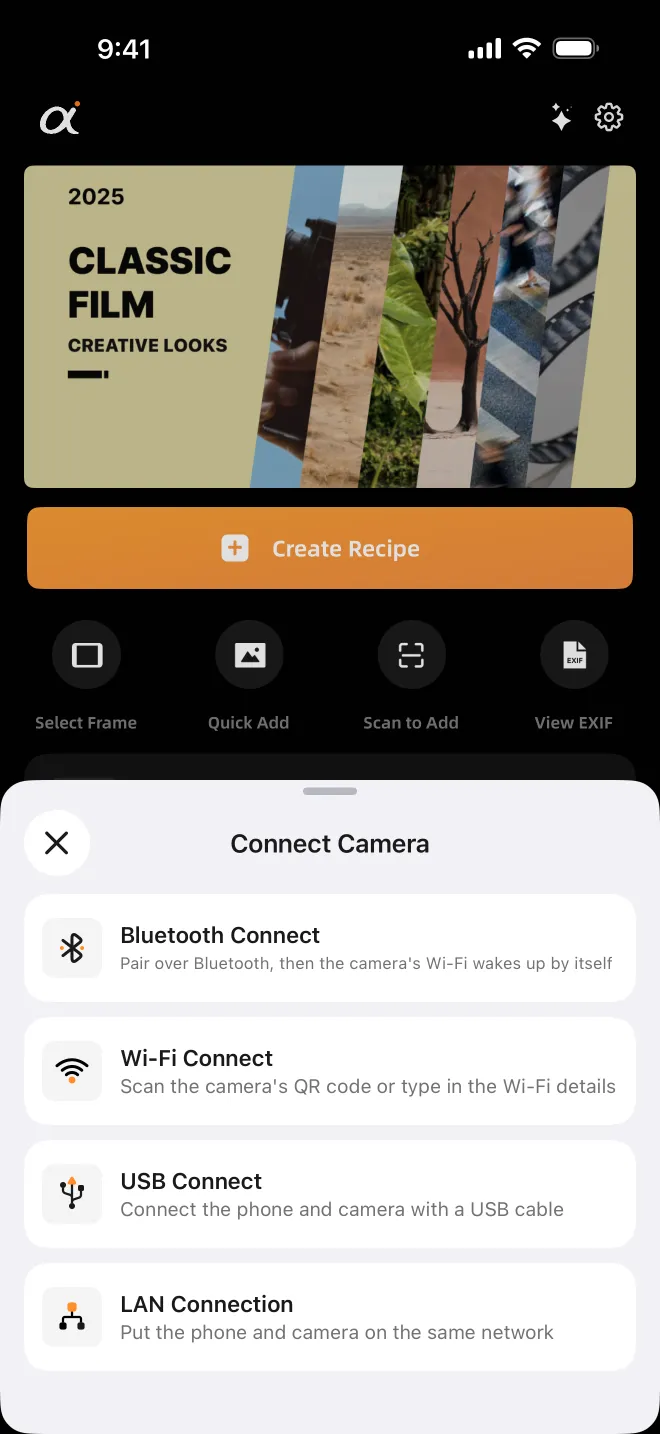
1. Connect the camera
Pick Bluetooth, Wi-Fi, USB or LAN.
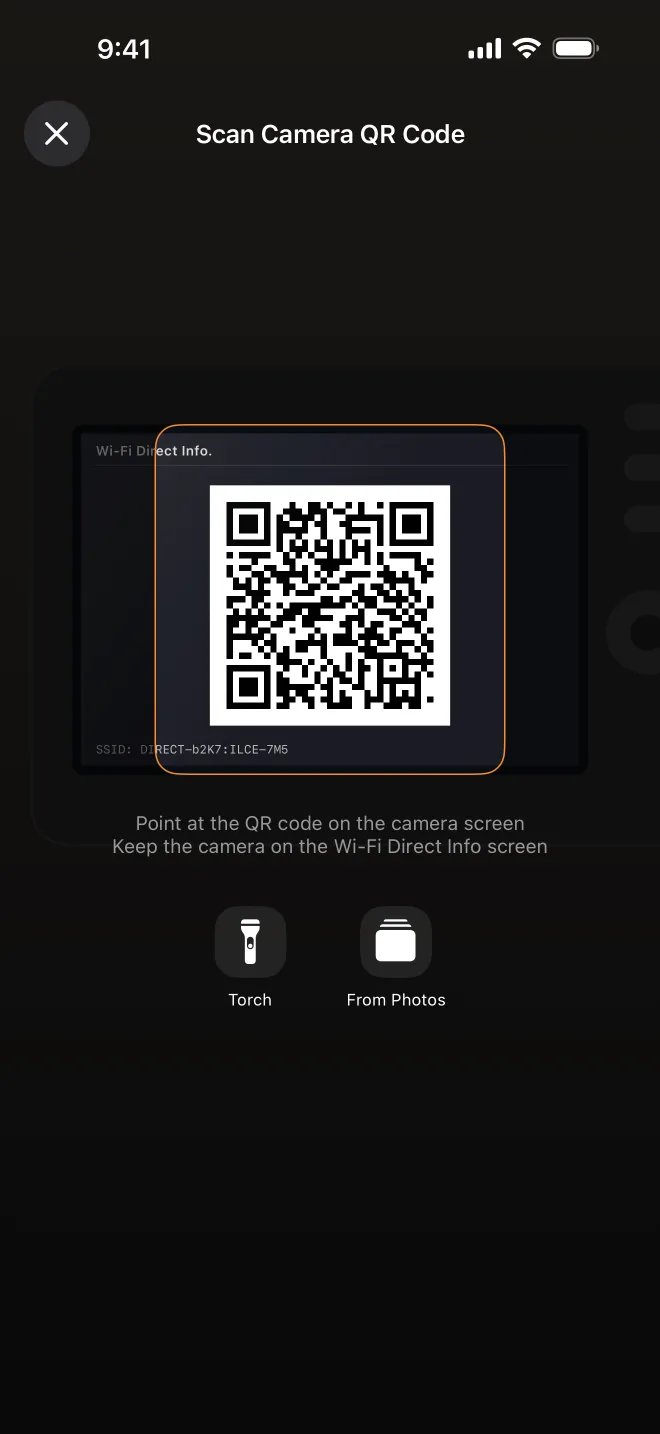
2. Wi-Fi: scan the QR code
Leave the camera on its Wi-Fi Direct Info screen and scan the code, or type the network name and password.
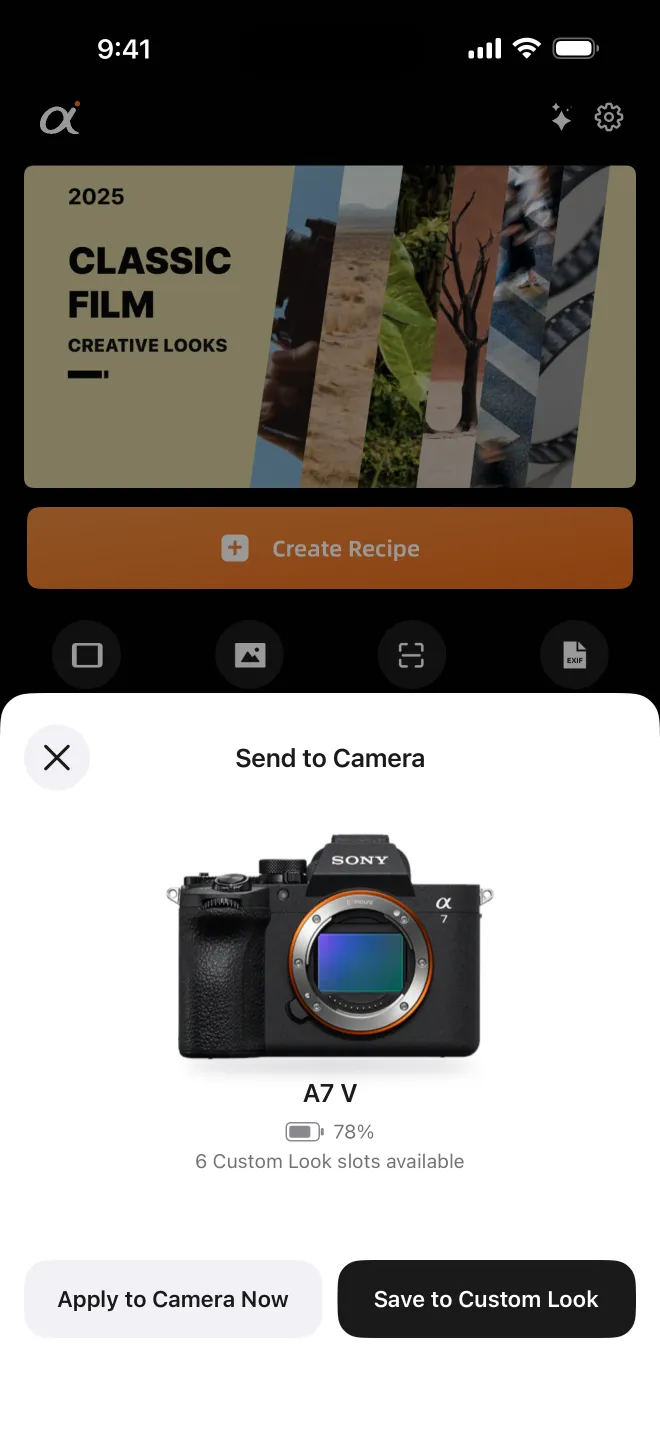
3. Apply now or save to a slot
Apply to Camera Now writes white balance too; Save to Custom Look keeps it in a slot.
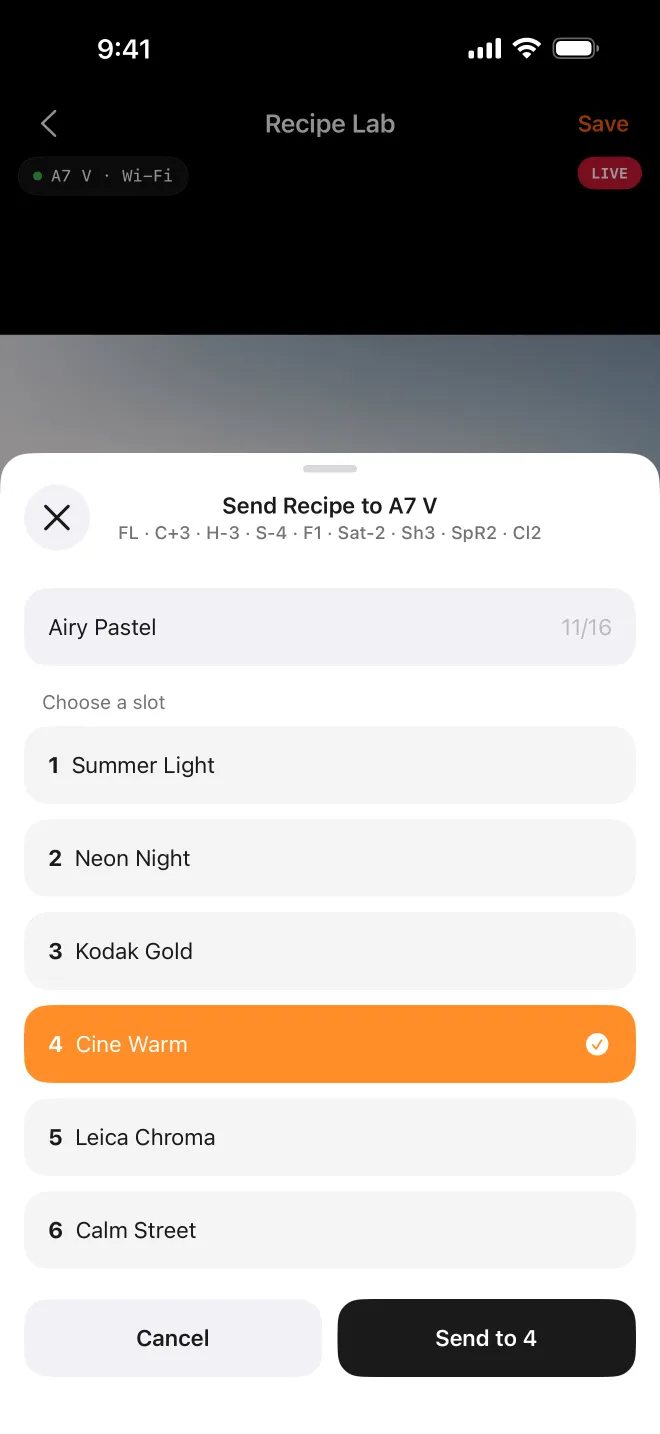
4. Pick the slot
Choose the Custom Look slot to overwrite and confirm. A slot holds the look and sliders, not white balance.
Four ways to connect
USB
- How it connects
- Data cable straight to the camera
- What you need
- iOS 15 or later; iPhone 14 and earlier also need Apple’s Lightning to USB Camera Adapter
Wi-Fi
- How it connects
- Phone joins the camera’s own hotspot by QR code or by typing it in
- What you need
- iOS 16 or later; the phone has no internet while connected
Bluetooth
- How it connects
- Pair once; the app asks the camera to start its hotspot, then connects over it
- What you need
- iOS 16 or later; camera on its Connect to Smartphone screen; no internet while connected
LAN
- How it connects
- Camera and phone on the same router; the app finds the camera
- What you need
- iOS 16 or later; the camera’s Access Authen. username and password; the phone stays online
Which cameras it can write to
On the bodies AlphaLuma supports, USB writing is available. Wireless writing over Bluetooth, Wi-Fi or LAN is listed camera by camera and varies by body, so look yours up on AlphaLuma’s supported cameras page before you leave the cable at home. That page also marks which bodies have been verified. Bodies that only have Creative Style cannot take these recipes over any connection, and if the app does not recognise a camera, it writes nothing.
Full walkthroughs and tested cameras:
Check the result
Take a test shot in JPEG or HEIF and open the camera-original file in our Recipe Reader. It reads the Creative Look settings stored in the file, locally in your browser, without uploading the photo. That shows what the camera actually applied, not what you meant to enter. Compare the base and the eight sliders with the card.
If the Reader says the frame was shot with Picture Profile, a profile was on and the Look was not used: set Picture Profile to Off and shoot again. A Custom Look slot holds the look and sliders but not white balance, so if that differs from the card, set it on the camera or save the whole state to Memory Recall. On iPhone, pick the original from the Files app; Photos can strip the camera data.
Questions
- Can I copy Picture Profile or Creative Style values into Creative Look?
- No. They are separate menus with different controls, and nothing carries over between them. Creative Style adjusts only Contrast, Saturation and Sharpness, with no Fade or Clarity. Picture Profile sets gamma, color mode, knee and the like for footage you will grade. Copying the few values that share a name does not rebuild a recipe, because the rest has nowhere to go. Start from a Creative Look recipe instead.